How to install Cactbot on ACT
About ACT:
ACT make possible to do logs to upload and analyze them on fflog to check DPS / HPS / CD / etc.
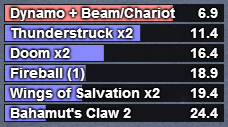
With some plugins you can also add cactbot that will do a system like DBM /BigWigs

1) Installing ACT
First go on https://advancedcombattracker.com/download.php and download the setup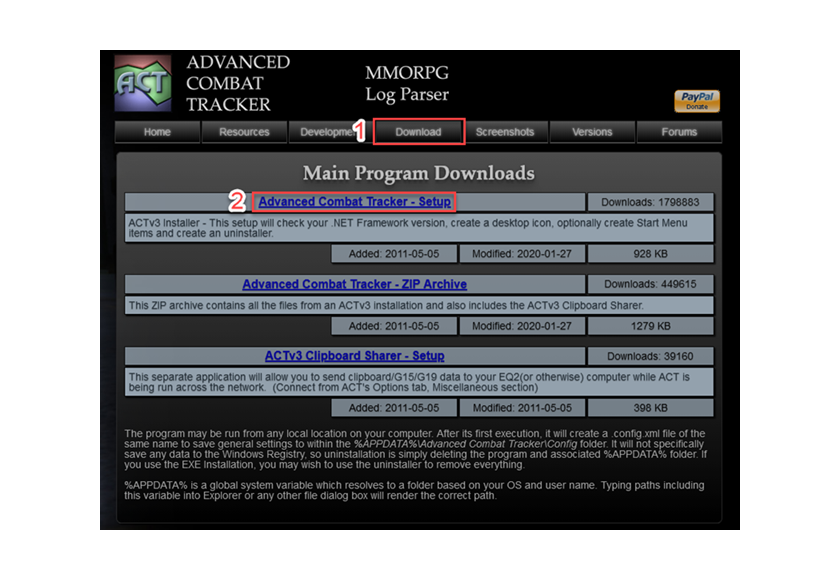
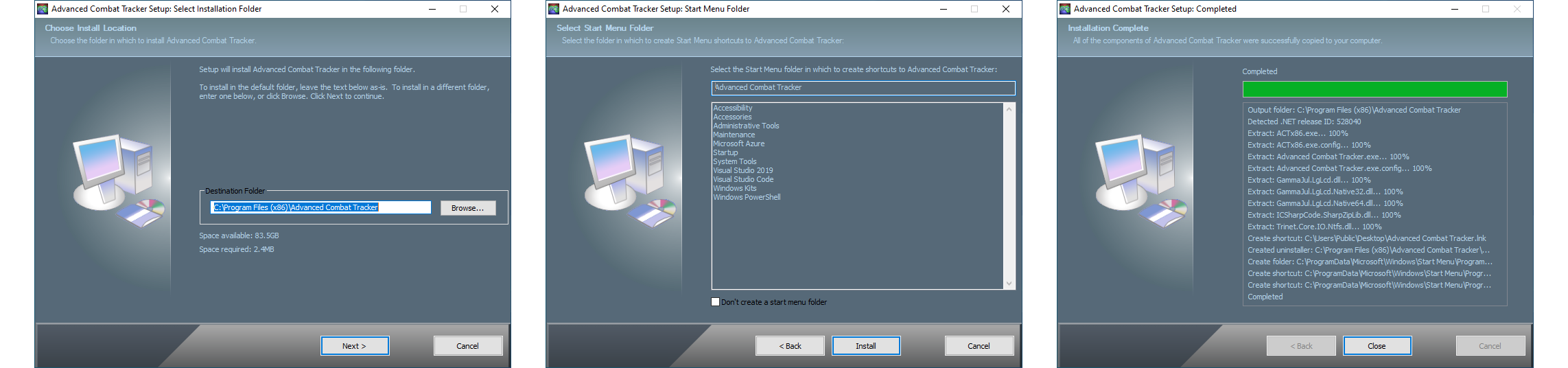
Install ACTv3-Setup.exe and follow the instruction you can leave default parameters
2) Configuring ACT:
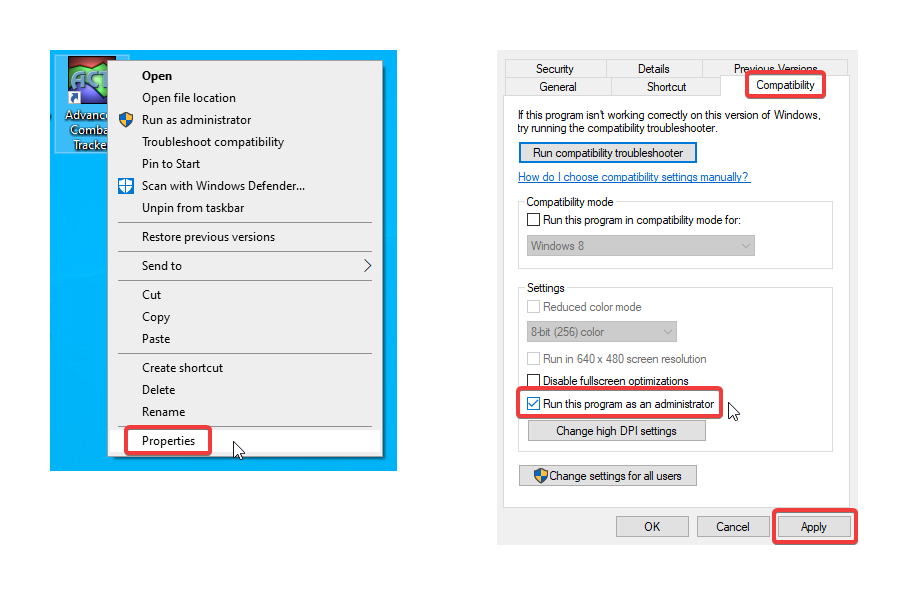
Please always run ACT as administrator
Adding Firewall Exception:
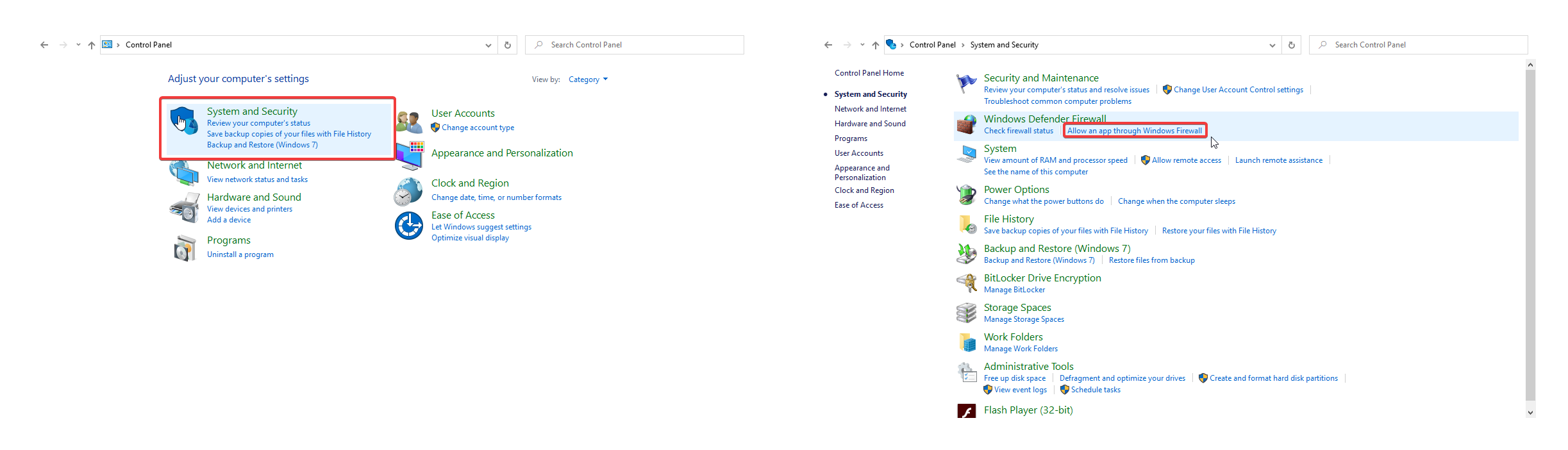
Open the windows Control Panel (you can search for control panel in the taskbar search bar). Select the System and Security category and under Windows Defender Firewall click on Allow an app through Windows Firewall.
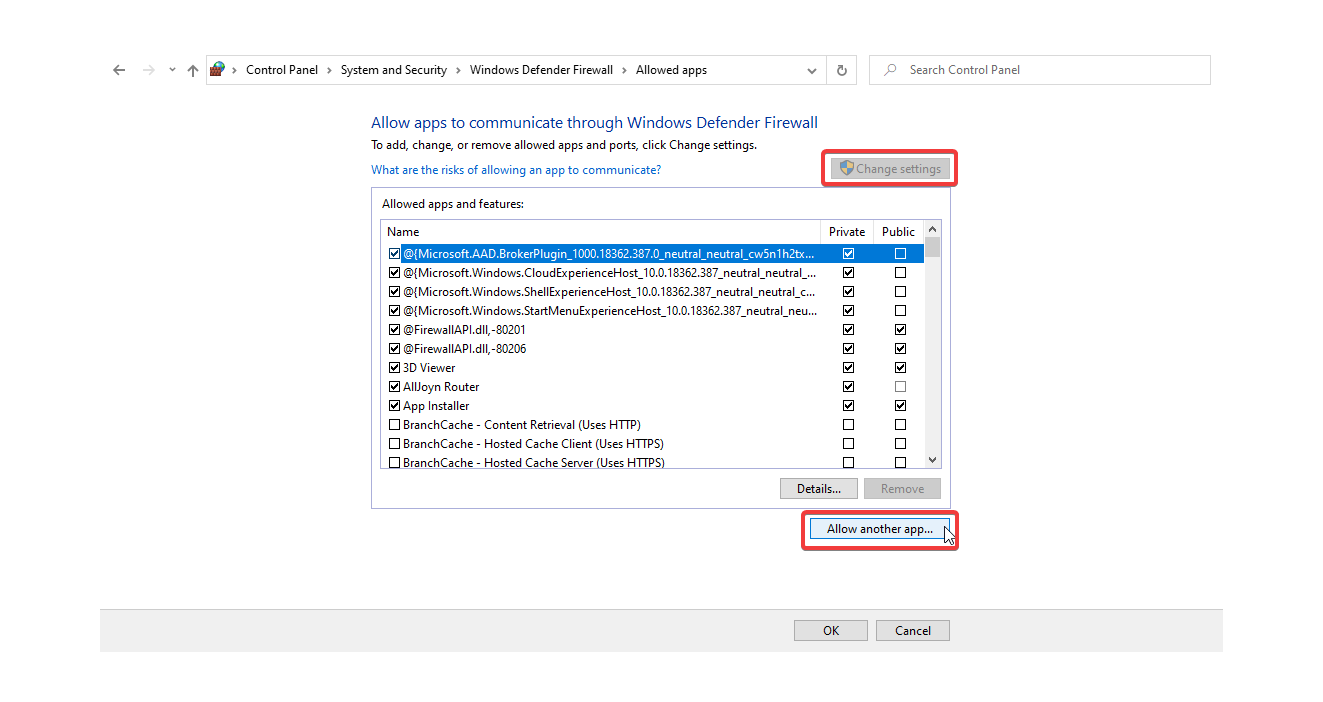
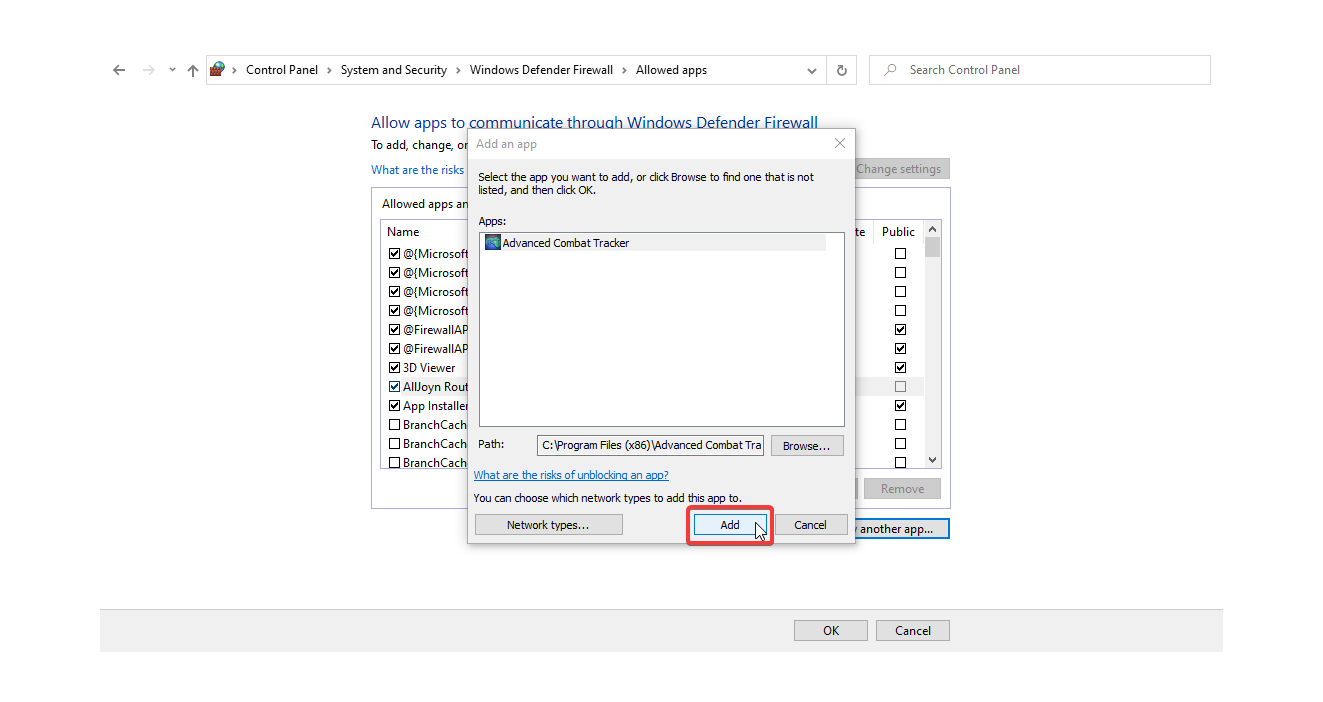
Inside the allowed apps window, click on Change settings button, then on the Allow another app... button.
This will open up a dialog window to select an app.
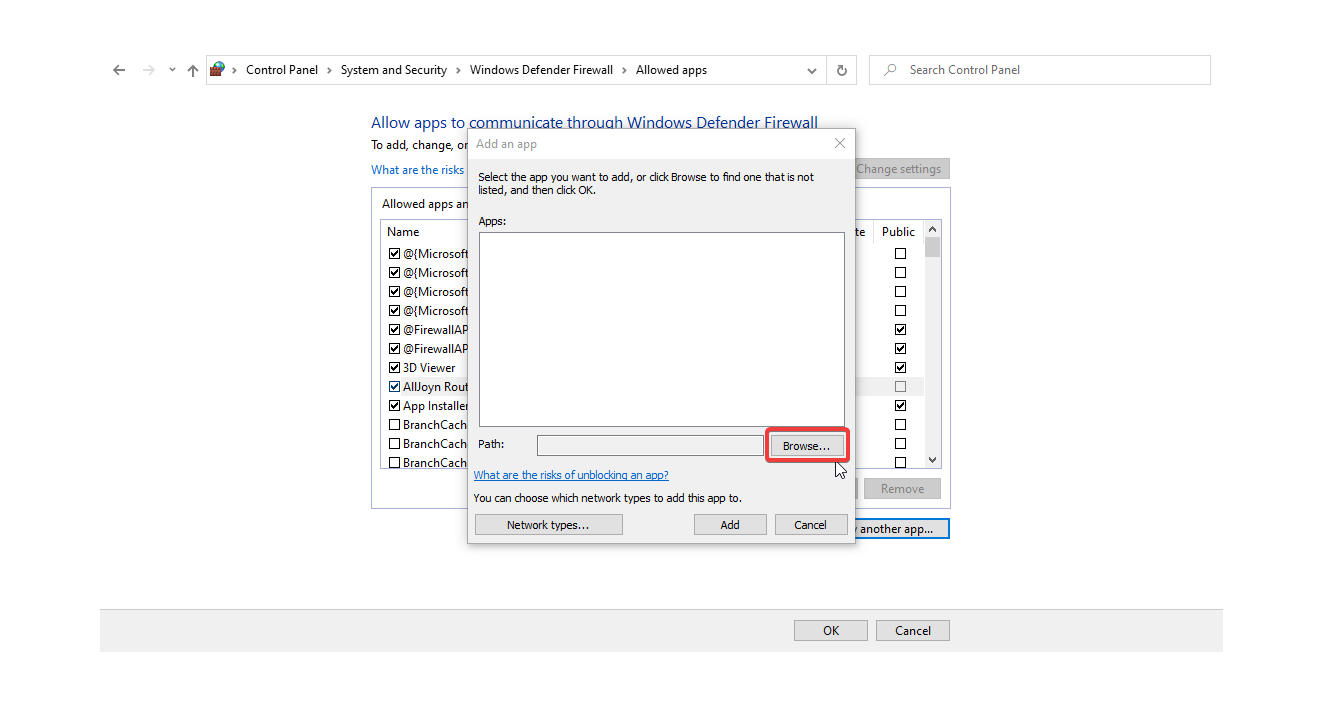
Click on the Browse... button and navigate to the ACT install folder. The default location should be in C:\Program Files (x86)\Advanced Combat Tracker.
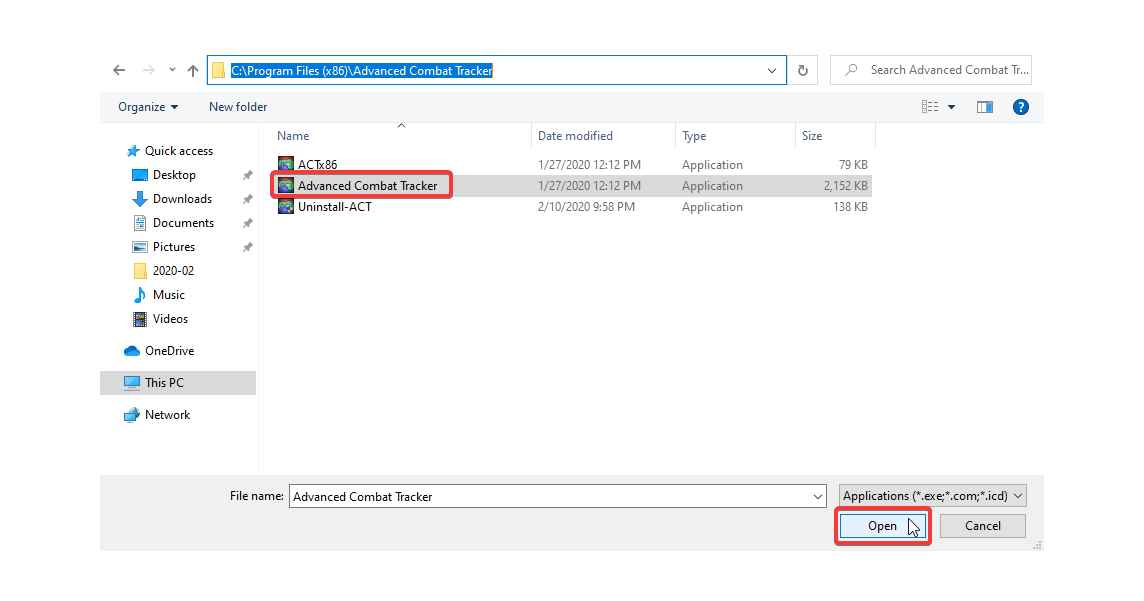
In the ACT folder, select the Advanced Combat Tracker application and click on Open.
Back in the dialog window, click on Add to add ACT to the windows firewall exceptions.
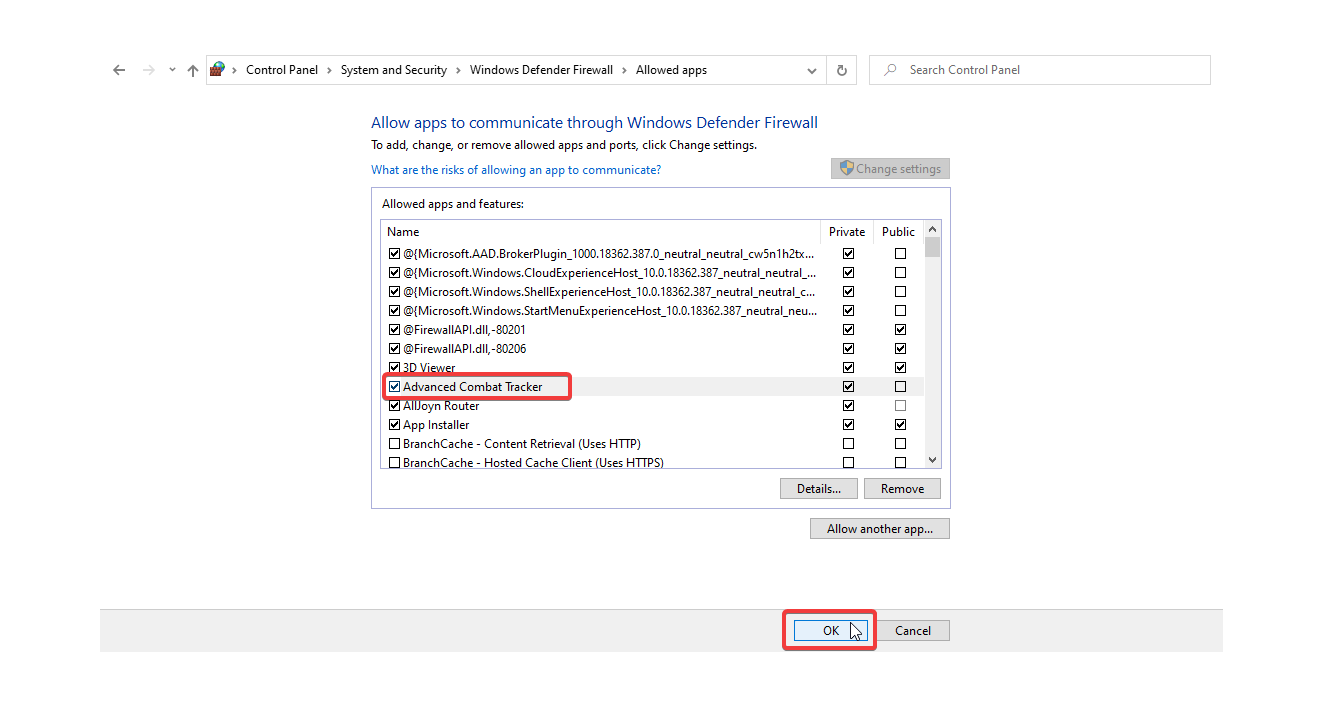
Advanced Combat Tracker should now appear in the list of Allowed apps and features. Click OK and exit the Control Panel.
3) FFXIV ACT Plugin:
In your ACT folder create another folder "plugins"

Now we will need to download the 3 majors plugins
- FFXIV ACT: go to https://advancedcombattracker.com/download.php and download FFXIV Parsing Plugin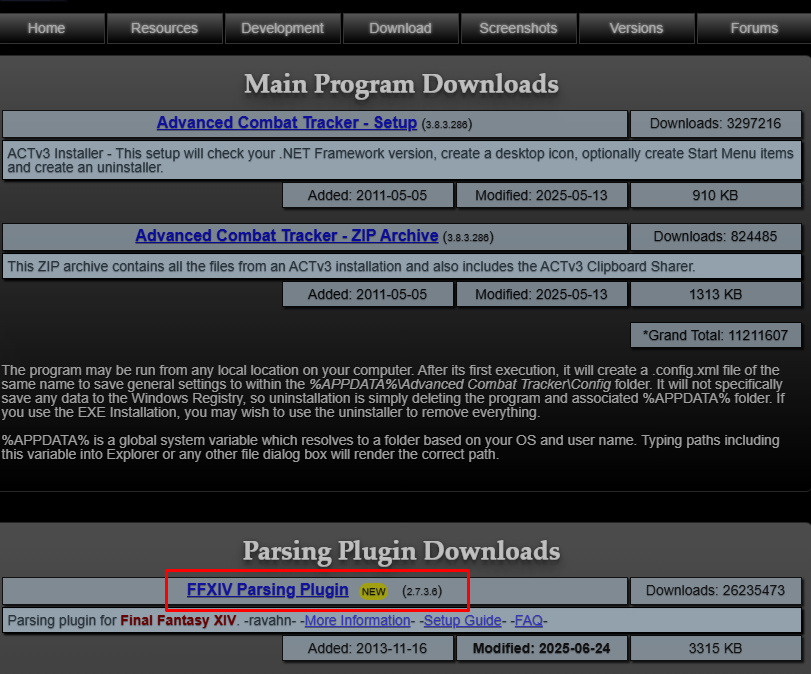
Unlock & Unzip it, create a folder FFXIV in your plugins one and put the 2 .dll files inside this folder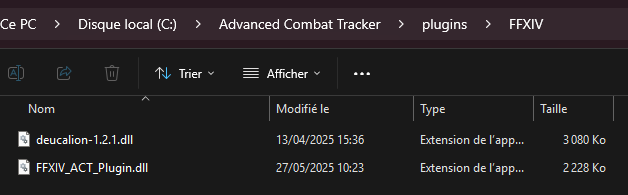
- OverlayPlugin: go to https://github.com/OverlayPlugin/OverlayPlugin/releases and download the last OverlayPlugin-[version].zip unlock and extract it and place it in your plugins folder
- Cactbot: go to https://github.com/OverlayPlugin/cactbot/releases and download the last cactbot-[version].zip unlock, extract it and place it in your plugins folder
Now you should have a plugins folder that contains this 3 plugins:
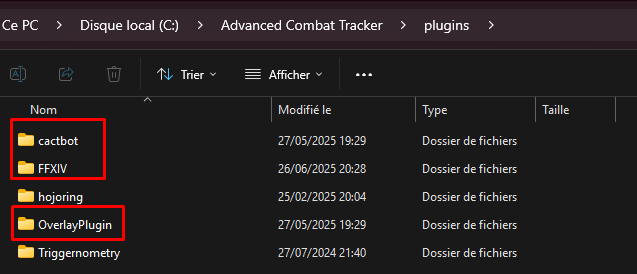
Now go to your plugins tab in ACT and we need to add each plugins into ACT
You need to add them in the correct order: FFXIV => OverlayPlugin => Cactbot
1) Browse to the folder of the plugin you want to add
2) Select the file
3) Click on Add/Enable Plugin
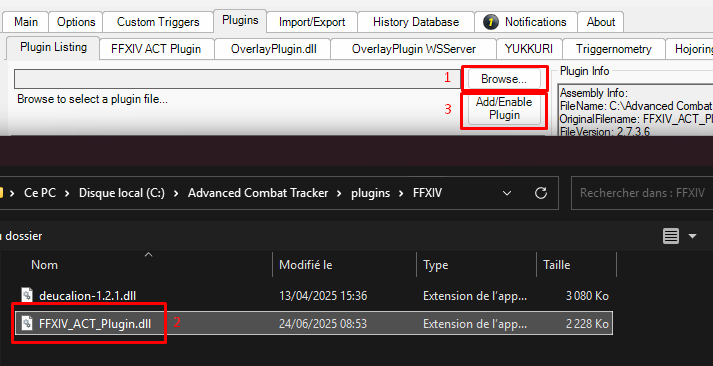
Repeat for the 3 plugins, you should end with a plugins list like this: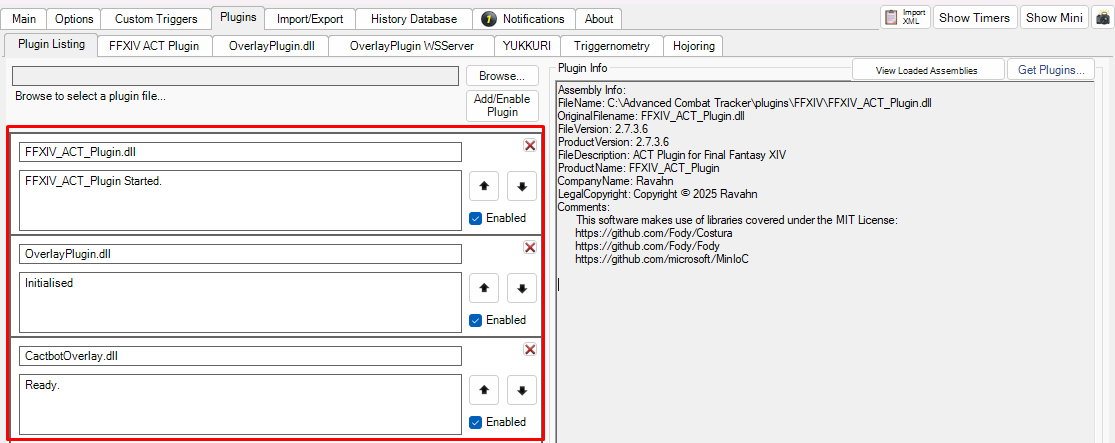
Now you can restart your ACT to load ACT with the plugins
Plugins configuration:
To configure plugin, go to plugins tab and select the plugin you want to configure
FFXIV:
For FFXIV plugin go to the tab of the plugin and you can just copy it and change the game language to the one you use
If you want to upload logs on FFLOG later, you can also configure the folder where it will be saved to make it easier to find them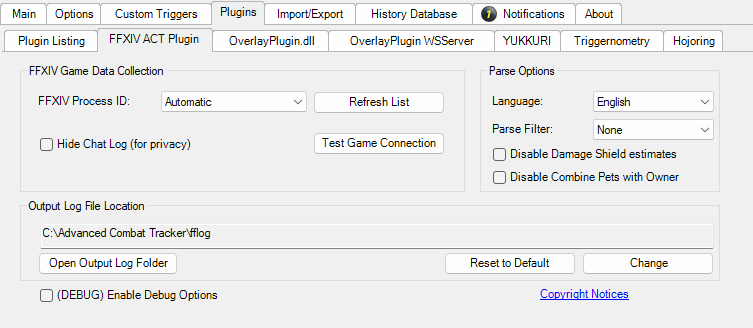
Cactbot:
Go to the overlayPlugin.dll tab and select Cactbot Config, you can now configure if you want text & sound or only text the language of the text, etc.
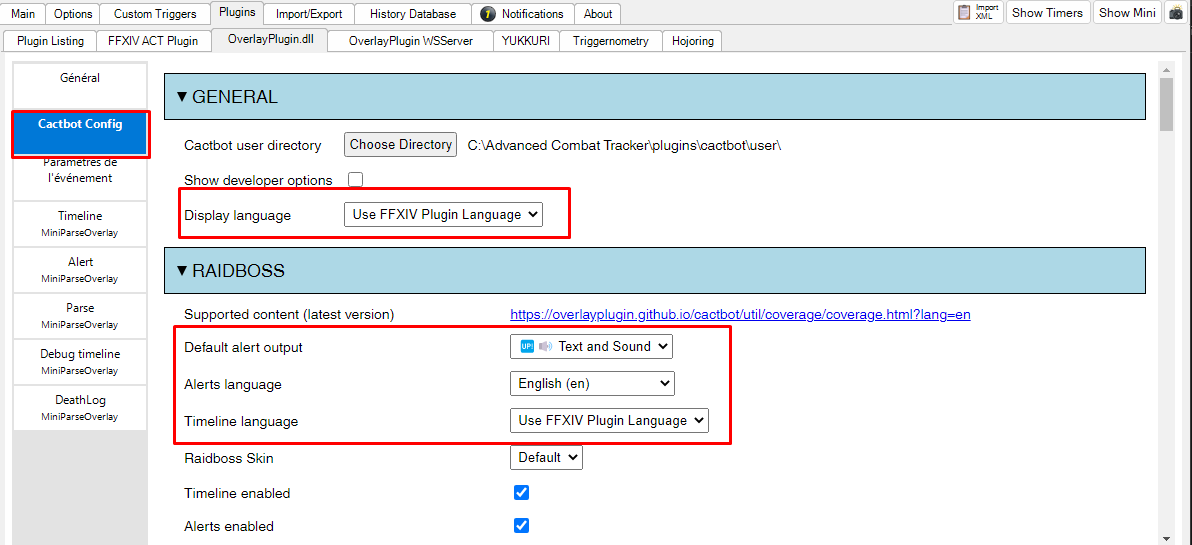
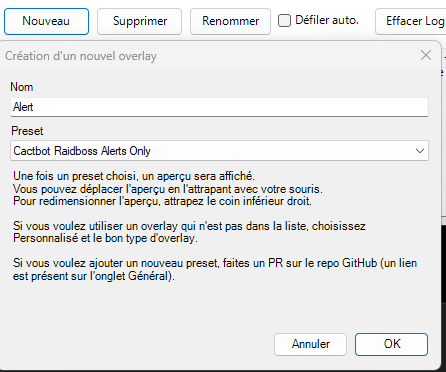
Now you can add Alert and Timeline module, to do that, just click on the new button in OverlayPlugin Tab:
Put "Alert" in Name and for preset select Cactbot Raidboss Alerts Only a block will appear ignore it for now and press ok
Do the same for Timeline select Cactbot Raidboss Timeline Only and press ok
Place the alert and timeline block where you want them to appear on your screen: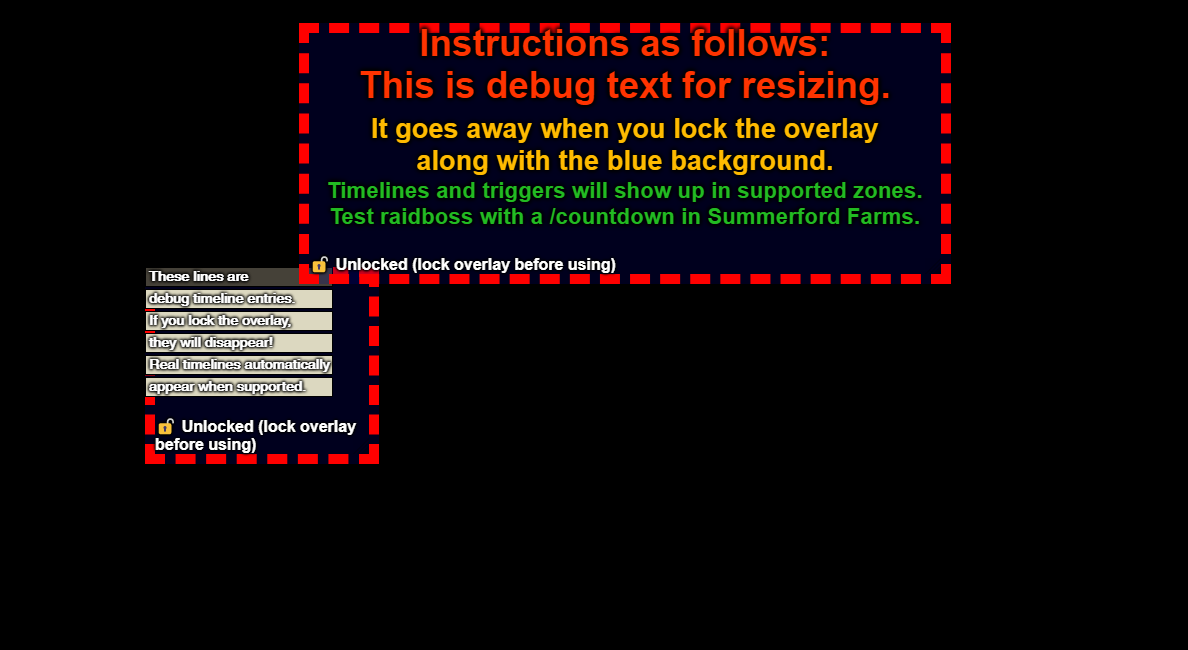
Once you find their a placement lock them, to do that select the timeline or alert tab and check the allow click trough and Block Overlay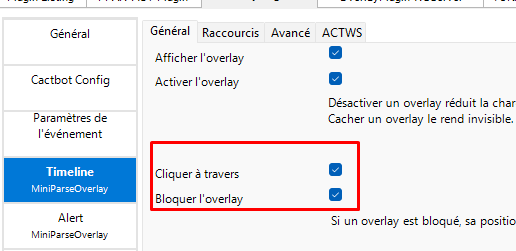
Congratz you're now ready to use cactbot in raid